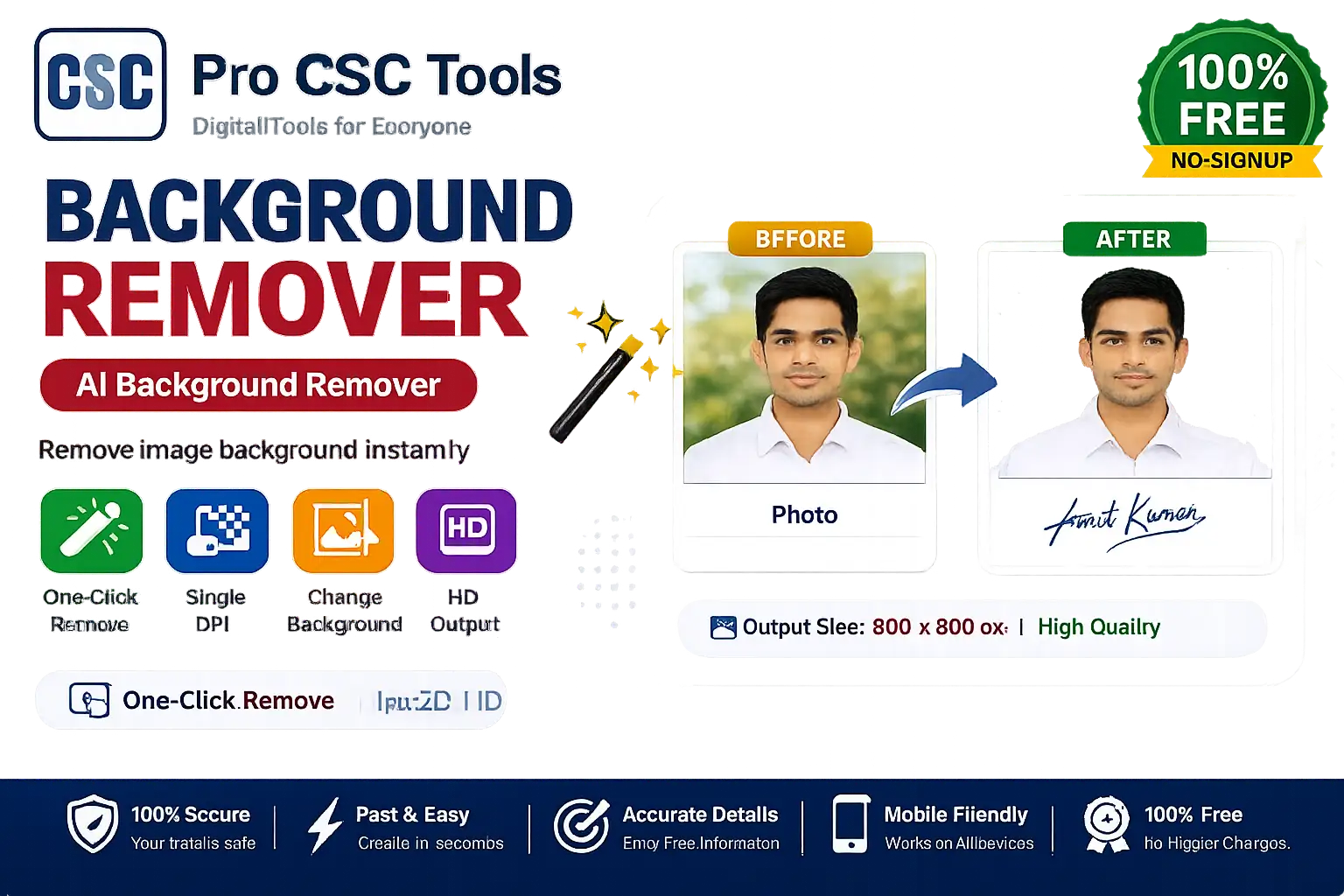
Removing the background from a photo used to need Photoshop skills. Today, with an AI background remover, anyone can get a clean transparent or white background in one click - and that is exactly what busy CSC VLEs need.
The free Background Remover from Pro CSC Tools automatically detects the subject and removes the background, so you can quickly prepare passport photos, product images, and signature cut-outs without any editing skills.
What Does a Background Remover Do?
A background remover uses smart detection to separate the main subject (a person, product or object) from the background. You can then keep the background transparent or replace it with a solid color like white.
This is extremely useful for documents that require a plain background and for clean product photos for online selling.
Transparent vs White Background
A transparent background (PNG) is best when you want to place the subject on another design, like an ID card or poster. A white background is best for passport photos and official forms.
How to Use Background Remover - Step by Step
- Open the Background Remover tool on Pro CSC Tools.
- Upload the photo you want to edit.
- Wait a moment while the tool automatically detects and removes the background.
- Choose a transparent or white (or custom color) background.
- Preview the result and fine-tune if needed.
- Download the final image in high quality.
Key Features of Background Remover
- One-click removal: Automatic subject detection - no manual selection needed.
- Transparent PNG: Export with a transparent background for designs and ID cards.
- Solid colors: Instantly add a white or custom color background.
- Fast and free: Works in seconds with no watermark.
- Mobile-friendly: Use it directly from your phone browser.
Use Cases for CSC VLEs & Students
- Passport and ID photos needing a plain background
- Product images for WhatsApp and online stores
- Cut-out signatures and stamps for documents
- Profile photos for resumes and social media
- Poster and banner design elements
Pro Tips for Best Results
- Use a photo where the subject is clearly separated from the background for the cleanest cut.
- Good lighting improves edge detection around hair and fingers.
- Export as PNG to keep the transparency.
- For passport use, switch to a white background after removal.
Frequently Asked Questions
Is the background remover really free?
Yes, it is completely free to use on Pro CSC Tools with no watermark on your downloads.
Can I get a transparent background?
Yes, you can download the image as a transparent PNG, or replace the background with white or any color.
Do I need any editing skills?
No. The tool removes the background automatically, so no Photoshop or editing knowledge is required.
Will the image quality stay good?
Yes, the tool keeps your image sharp and high quality after removing the background.
Does it work on mobile?
Yes, the background remover works in any mobile or desktop browser.
Try Background Remover Now - 100% Free
Fast, secure and mobile-friendly. No signup, no watermark.
Open Background Remover